
Last updated July 28, 2026
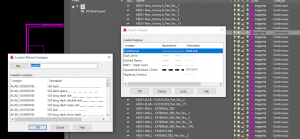
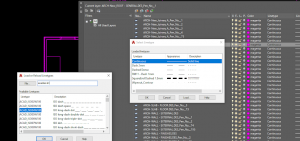
You open the Layer dialog on a metric drawing, go to load a linetype, and AutoCAD offers you acad.lin — the imperial file, with imperial dash lengths. You want acadiso.lin. Here is why it happens and how to stop it happening again.
The short answer
Set MEASUREMENT to 1 in the drawing, and MEASUREINIT to 1 so new drawings start that way.
That is the whole fix. The rest of this page is what those two variables actually do, because they are more consequential than they look and they are frequently confused with each other.
The two variables are not the same
| Variable | Scope | Affects |
|---|---|---|
| MEASUREMENT | Saved in the drawing | Which hatch pattern and linetype files this drawing uses |
| MEASUREINIT | Saved in the registry, per user | What MEASUREMENT is set to in a drawing started from scratch |
Both take 0 for imperial and 1 for metric.
The distinction matters because it explains the most common version of this problem: you fix MEASUREMENT, everything is fine, and then the next new drawing is wrong again. MEASUREMENT only fixed the drawing in front of you. MEASUREINIT is what fixes the next one.
It also explains why a drawing someone emails you can be stubbornly imperial on a machine set up entirely for metric work. The setting travelled with the file.
It controls hatch patterns too
This is the part that surprises people, because the variable is usually met while chasing a linetype.
MEASUREMENT selects the hatch pattern file as well as the linetype file — acad.pat against acadiso.pat. So the same setting that gives you imperial dashes also gives you imperial hatch scaling. If your hatches have been coming out at unhelpful densities and you have been fixing them by trial and error at the scale box, this may well be why.
It matters again if you install custom patterns. Appending a set to acad.pat when your drawings read acadiso.pat means the patterns are there, in a file nothing is looking at. See material hatch patterns for the install steps and which file to use.
How to set them
- Type MEASUREMENT and enter 1. That fixes the current drawing.
- Type MEASUREINIT and enter 1. That fixes drawings you start from scratch, from now on.
- Reopen the Layer dialog and load a linetype. It should now offer
acadiso.lin.
Linetypes already loaded into the drawing do not change retrospectively. If a drawing has imperial linetypes in it, they stay imperial until you reload them from the metric file.
The better fix: use a template
Setting MEASUREINIT only matters for drawings started from scratch, and in an office almost nothing is started from scratch. Real work starts from a template.
So the durable answer is to get MEASUREMENT right in your template, along with everything else that should not be decided per drawing: units, dimension styles, text styles, layers, linetypes already loaded. Then the question stops arising, for you and for everyone else using that template.
If you have inherited a template and are not sure what it carries, opening a new drawing from it and checking MEASUREMENT is a ten-second test worth doing once.
What each value means
- 0 — Imperial. Uses the hatch pattern file and linetype file named by the ANSIHatch and ANSILinetype registry settings, which are normally
acad.patandacad.lin. - 1 — Metric. Uses the files named by ISOHatch and ISOLinetype, normally
acadiso.patandacadiso.lin.
The initial value of MEASUREINIT varies by country and region, which is why this is a problem some drafters never meet and others meet on day one.
References
- Material hatch patterns — installing custom patterns into the right .pat file
- Free AutoCAD hatch patterns
- Choosing the right units for your CAD drawings
- AutoCAD text styles — another thing that belongs in the template rather than the drawing