
Last updated July 28, 2026
ROUGHEN turns a straight line or polyline into an irregular zigzag. The classic use is the one the author gives in the source: showing an existing concrete surface that has been roughened or scabbled so new concrete will key into it. It is equally handy for hatching a break line, indicating a rough excavation face, or any other place where a deliberately untidy line says something a neat one cannot.
It is the work of Mark Middlebrook of Daedalus Consulting, copyright 1993 to 1999, in a version dated 31 May 1999. The listing below records the author as Anon; the file header names him. His licence is short: you are free to pass ROUGHEN.LSP on to others so long as you do not charge for it.
What it does in practice
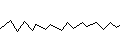
Select a line or polyline and ROUGHEN inserts a run of new vertices along it, then nudges each one alternately to one side and the other of the original path by a random amount. The result is a zigzag that is regular in its rhythm but irregular in its heights, which reads far better on a drawing than a mechanically uniform sawtooth.
Select a plain line and it converts it to a polyline first, so you do not have to think about which you have. It handles both lightweight polylines and the older heavyweight kind — the header notes explicitly that the routine was updated to cope with the lightweight objects AutoCAD introduced at R14.
Three settings drive the result, and all three persist for the rest of your session once set:
- Drawing scale factor — taken from your DIMSCALE the first time, or 1 if DIMSCALE is zero. The other two settings are multiplied by this, so the roughening comes out the same size on paper whatever scale you are drawing at.
- Roughness period — roughly the length of each zigzag. Larger numbers give fewer, longer zigzags. There is a floor of two zigzags per segment however long the period.
- Roughness amplitude — how far the spikes wander off the line. Larger numbers give higher spikes.
Current values are printed above the prompt every time you run it, so you always know what you are about to get.
Known limitations, from the author
The source lists two, and both matter in practice. The entire line or polyline must be visible on screen for the routine to work properly — zoom to fit the object before you run it. And arc segments in a polyline are turned into straight segments, so a curved polyline loses its curves in the process.
If you do not like the result, the author’s advice is simply to type U. Because the work is done through AutoCAD’s own polyline editing command, a single undo takes the whole lot back.
A well-behaved routine
Worth noting for anyone reading the code, because it is a model of the things period routines usually skip. It declares every one of its local variables. It saves your command echo and object snap settings, switches them off while it works, and puts them both back — including when something goes wrong, because the restore also lives inside its error handler. That error handler saves the previous one and reinstates it on the way out, and it exits quietly on a user cancel rather than reporting a spurious failure. Its global symbols all carry a Daed_ prefix so they cannot collide with anything else you have loaded.
The randomness comes from a small linear congruential generator included in the file, seeded from AutoCAD’s DATE variable, which the author credits to Doug Cooper’s book Condensed Pascal. AutoLISP has no built-in random function, so a routine that needs one has to bring its own.
Command reference
The file defines a single command, ROUGHEN, with two options at its prompt: pick an object, type L for the last object drawn, or type O for Options to change the three settings above.
How to load it
Unzip Roughen.zip and load ROUGHEN.LSP with APPLOAD, or type (load "ROUGHEN") at the command line as the author suggests. Add it to the Startup Suite if you use it often. Our AutoLISP guide covers the loading options.
Step-by-step usage
- Zoom so the whole line or polyline you want to roughen is visible on screen.
- Type ROUGHEN. It reports the current drawing scale, roughness period and roughness amplitude, then prompts “Select a polyline or line or [Options]:”.
- To adjust the settings first, type O. It asks for the drawing scale factor, then the roughness period (“larger numbers give fewer zigzags”), then the roughness amplitude (“larger numbers give higher spikes”). Press Enter at each to keep the current value. It then returns to the selection prompt.
- Pick the object, or type L to use the last one you drew.
- The zigzags appear. If the scale is wrong, undo, run it again with Options and adjust the period and amplitude.
Picking something that is neither a line nor a polyline gets “Object is not a polyline or line.”; missing entirely gets “No object selected.”
Compatibility notes
The header states this version works with AutoCAD R12 through 2000, and the listing below records it as working on releases from 2000 through to 2019 — unusually good longevity for a routine of this age, and a fair reflection of the fact that it relies only on long-standing AutoLISP functions and AutoCAD’s own PEDIT command. There are no dialog boxes and no Express Tools calls, so nothing in it requires the full product; LT users on LT 2024 or later, the release that brought AutoLISP to LT, should be able to run it. See what runs on AutoCAD LT.
Download
| Name: | ROUGHEN |
| Description: | Use ROUGHEN when you want to turn a polyline or line into an irregularly zigzaggy line. For example, you can use roughened lines to designate existing concrete surfaces that have been scabbled for better adhesion with new concrete. |
| Type: | AutoCAD AutoLISP Routine |
| Author: | Anon |
| File Size: | 4 Kb |
| Cost: | Free |
| Worked on: | AutoCAD 2000, 2004, 2005, 2006, 2007, 2019 |
| Download File: | Roughen.zip |
Related routines
- Freehand — the same idea applied to presentation drawings, giving lines a hand-drawn wobble.
- Best of LISP collection — includes Mark Middlebrook’s flatten routines.
- TXP — another polyline utility, for turning text into clean polylines.