
Last updated July 29, 2026
Collecting AutoLISP routines is the easy part. Getting them to load every time you start AutoCAD — on every drawing, after an upgrade, on the machine in the corner that nobody has touched since 2019 — is where most personal libraries fall apart.
This is how to set one up so it stays working: where to put the files, how AutoCAD finds them, how to make them load themselves, and why a routine sometimes refuses to load at all and says almost nothing about it.
Update (2026): this library now has an AI-era companion — read about hooking Claude up to AutoCAD with MCP, running on AutoLISP.
1. Put the files somewhere sensible
One folder, outside the AutoCAD program directory, that survives an upgrade. Something like C:\CAD\Lisp\ or a mapped drive if the office shares routines.
Nor inside your user profile, for the same reason — the roaming path carries the release number in it, so a new release means a new folder and a library left behind. Autodesk’s own advice for shared setups is to “place all customization files in a centralized network location”.
Two reasons not to bury them inside the AutoCAD install. It gets replaced when you upgrade, and everyone loses their routines. And you will want to back the folder up on its own — twenty years of accumulated LISP is worth more than most of what is on the machine.
One thing not to do: do not leave routines loose in the folder AutoCAD starts in, or alongside the drawings. Autodesk is blunt about why:
The most common vulnerability results from allowing executable code to co-exist with data, such as automatically loaded AutoLISP files in the Start In folder.
Modern AutoCAD defends against this by default: the LEGACYCODESEARCH system variable has an initial value of 0, which excludes the Start In and drawing folders from executable searches. Keep it that way, and keep your code in its own folder.
2. Tell AutoCAD where to look
AutoCAD will not find your folder by magic. Add it to the Support File Search Path:
- Type
OPTIONS(orOP). - Go to the Files tab.
- Expand Support File Search Path.
- Click Add, then Browse, and point it at your LISP folder.
- Move it up the list if you want it searched early — the order matters, because AutoCAD takes the first match it finds.
And the one that catches nearly everyone. The two lists are not independent: Autodesk describes Trusted Locations as listing “the folders in the Support File Search Path that have permission to load and run executable files”. Trusted is a subset of the search path. Mark a folder trusted but forget to add it to the search path and AutoCAD still cannot see it — you have granted permission to something it never looks at. Both lists, every time.
The search order is documented too: “Paths are searched in the order that they are listed. If the same file is found in multiple folders, then the first instance found is used.” If two folders on the path both contain a file called clean.lsp, the one higher in the list wins. It is a good reason to keep your own routines in a single folder rather than scattered, and a good reason to give your files distinctive names.
3. Make them load themselves
Being on the search path means AutoCAD can find a routine when you type (load "clean"). It does not mean the routine is loaded. For that there are three mechanisms, and they load in a defined order.
The Startup Suite — the easy one
Type APPLOAD, and in the Load/Unload Applications dialog find the Startup Suite panel. Add your .lsp files to it. Autodesk’s description is exactly what it says on the tin: “The Startup Suite option loads the specified applications each time the product starts.”
For most people this is the whole answer — no files to write and no syntax to get wrong. Two caveats, though, and the second is the reason it is not the recommendation here. Since the AutoCAD 2014 releases, applications in the Startup Suite must also sit in a trusted location, so it does not exempt you from the security settings below. And it is bound to your profile on that machine: it does not travel to a colleague, and it does not survive a profile reset. An acaddoc.lsp in a shared folder does both.
acad.lsp and acaddoc.lsp — the proper way
These two files are how AutoCAD has always expected you to do it, and the difference between them is the single most useful thing to understand here. Autodesk:
acad.lsp or acadlt.lsp file is loaded only once, when the product starts, whereas the acaddoc.lsp or acadltdoc.lsp file is loaded with each individual document (or drawing).
So: acad.lsp is once per session, for things that only need doing once. acaddoc.lsp runs for every drawing you open, which is what you want for anything that sets up the drawing environment or defines commands you expect to be there in every file.
Neither file exists until you make one — Autodesk does not ship them: “The acad.lsp and acaddoc.lsp startup files are not provided with AutoCAD-based products.” Create a plain text file with the right name, put it on your search path, and fill it with (load "…") lines.
If in doubt, use acaddoc.lsp. Routines that were loaded once per session have a habit of not being there when you need them.
One failure mode worth knowing before you write a long one. Autodesk: “If an AutoLISP error occurs while you are loading a startup file, the remainder of the file is ignored and is not loaded.” A single typo near the top of acaddoc.lsp silently takes out every routine below it — no error you will notice at the time, just half a library quietly missing. It is a good argument for keeping the startup file short and for keeping work-in-progress routines off the search path entirely.
If you need something to run at the start of every drawing rather than merely be defined, that is S::STARTUP — and note it must be defined with defun-q, not defun.
One syntax rule that catches people, straight from the documentation: “If you use the command function in an acad.lsp or acadlt.lsp, acaddoc.lsp or acadltdoc.lsp, or MNL file, it should be called only from within a defun statement.” A bare (command …) at the top level of a startup file is asking for trouble.
The MNL file
If you have a custom CUIx, AutoCAD looks for an MNL file of the same name and loads it too. Useful when your routines belong to a toolbar or ribbon panel, because the two travel together.
The load order
| Order | File | Runs |
|---|---|---|
| 1 | acad.lsp (acadlt.lsp in LT) | Once, at application startup |
| 2 | acaddoc.lsp (acadltdoc.lsp in LT) | With every drawing |
| 3 | <cuixname>.mnl | After acaddoc.lsp, with its CUIx |
Autodesk states the third position outright — “The MNL file is loaded after the acaddoc.lsp file” — which matters if a routine in your MNL depends on something defined earlier.
There is a system variable governing the first row. ACADLSPASDOC set to 0 “loads acad.lsp or acadlt.lsp into just the first drawing opened in a session”; set to 1 it “loads acad.lsp or acadlt.lsp into every drawing opened”. If you have put things in acad.lsp and they are only working in the first drawing, that is the setting you are looking for.
4. When a routine silently refuses to load
You drop a .lsp into a new folder, load it, and nothing happens — or you get a warning you did not expect. This is not a broken routine. It is AutoCAD’s executable-file security, and it has been there since the 2014 releases.
SECURELOAD “controls whether executable files are restricted to being loaded from trusted folders only”. Its initial value is 1, and it may be locked by a CAD administrator:
| Value | Behaviour |
|---|---|
| 0 | Loads from anywhere without warning. Autodesk: “maintains legacy behavior, but is not recommended”. |
| 1 (default) | Loads from trusted locations; warns for anywhere else and lets you decide. |
| 2 | Trusted locations only. No prompt — it simply will not load. |
The list of file types this covers is longer than people expect: ARX, DBX, CRX, HDI, LSP, FAS, VLX, MNL, SCR from network paths, .NET assemblies, VBA macros, acad.rx, JavaScript and DLLs.
The fix: trust your folder, not everything
The right answer is to add your library folder to TRUSTEDPATHS, which “specifies which folders have permission to load and execute files that contain code”. A few details worth knowing:
- Several folders at once: set it to “one or more folder paths in quotes and separated by semicolons”.
- Subfolders: a path ending in
\...means “all of its subfolders are also trusted”. Handy if your library has folders per discipline. - Already trusted:
C:\Program Files\andC:\Program Files (x86)and their subfolders are trusted implicitly, so you never need to add them. - Empty does not mean open. Set to
""or"."and “there are no trusted folder paths in addition to the implicitly trusted ones” — the opposite of what people assume.
What not to do is set SECURELOAD to 0 because a routine would not load. That turns the protection off for every file from every location, on a machine that opens drawings from clients. Trust the one folder instead; it takes about the same thirty seconds.
Two notes for anyone on a current release. From AutoCAD 2026, if PROJECTAWARE is set to 1, both SECURELOAD and TRUSTEDPATHS become read-only, with SECURELOAD forced to 2 — so in that configuration trusted paths are managed for you and the warning-and-choose behaviour is gone. And in a managed office, both variables may simply be locked by the CAD administrator, in which case the conversation is with them, not with the settings dialog.
If you are on AutoCAD LT
LT has run AutoLISP since the 2024 release, and the startup files work the same way under their LT names — acadlt.lsp and acadltdoc.lsp. One documented difference: “AutoCAD LT doesn’t support the automatic loading of MNL files”, though the files can still be loaded by other means. There is more on what does and does not run on LT in our piece on AutoLISP on AutoCAD LT.
The library itself
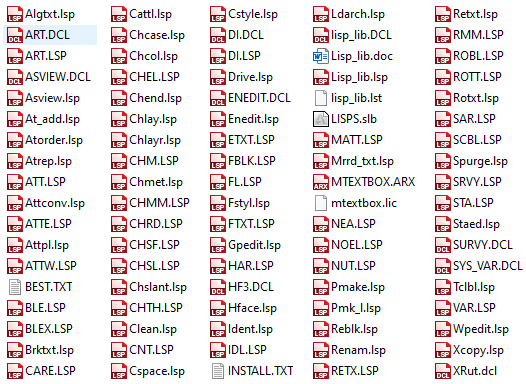
Here is the collection this page has always offered — a set of routines gathered over years of drafting, free to download and a reasonable starting point for a library of your own.
| Name: | My Lisp Library |
| Description: | These are just a few of the top lisp routines you should check out in the library; * HFACE.lsp – Create 3dfaces to hide entities around text, * Enedit.lsp – Create a selection set quickly and easily, then take advantage of its powerful editing routines. * Var.lsp – Creates a text file that records all the settings in the current drawing. When the restore button is pressed var.lsp quickly restores those saved settings. * Spurge.lsp – Purge command without verifying every purge. * Brktxt.lsp – Break a line of text and either add it to another line or create a new line of text with it. * Gpedit.lsp – Edit a polylines globally. * Asview.lsp – View a text file and print it from Autocad. * Clean.lsp – Finds all null text and text containing only spaces in your drawing so you can easily get rid of them. |
| Type: | AutoCAD AutoLISP Routine |
| Author: | See files |
| File Size: | 656 Kb |
| Cost: | Free |
| Worked on: | AutoCAD |
| Download File: | CAD-LISP-Library.zip |
For a great deal more, the free AutoLISP routines library has over a hundred downloads grouped by the job they do, and the AutoLISP hub has the ten-lesson course if you want to start writing your own.
The short version
- One folder for your routines, outside the AutoCAD install, backed up separately.
- Add it to the Support File Search Path (
OPTIONS→ Files). Order decides which duplicate wins. - Add it to
TRUSTEDPATHSas well — trusted locations are a subset of the search path, so it needs to be on both lists. - Auto-load with the Startup Suite, or with
acaddoc.lspif you want it per drawing. - Never fix a load problem by setting
SECURELOADto 0.
References
- SECURELOAD (System Variable) — Autodesk AutoCAD Help. Integer, saved in registry, initial value 1; the 0/1/2 behaviours and the affected file types.
- TRUSTEDPATHS (System Variable) — Autodesk AutoCAD Help. Semicolon-separated paths, the
\...subfolder rule, the implicitly trusted Program Files locations, and what an empty value means. - About Security and Protecting Against Viruses — Autodesk AutoCAD Help. Executable code co-existing with data in the Start In folder.
- About Auto-Loading and Running AutoLISP Routines — Autodesk AutoCAD Customization Guide. acad.lsp versus acaddoc.lsp, the MNL load position, the command-inside-defun rule, and the LT differences.
- ACADLSPASDOC (System Variable) — Autodesk AutoCAD Help.
- Startup Suite Dialog Box — Autodesk AutoCAD Help.
- APPLOAD (Command) — Autodesk AutoCAD Help.
- Files Tab (Options Dialog Box) — Autodesk AutoCAD Help. The Support File Search Path.